Lesson 1: Getting Started
1 R and Rstudio
- R: programming software
- Open R once to look at it - you will never need this again
- Rstudio: text and code editor, file manager - program in which you actually work
- You could also use other environments (e.g. Jupyter Notebooks, Visual Studio Code)
2 RStudio interface
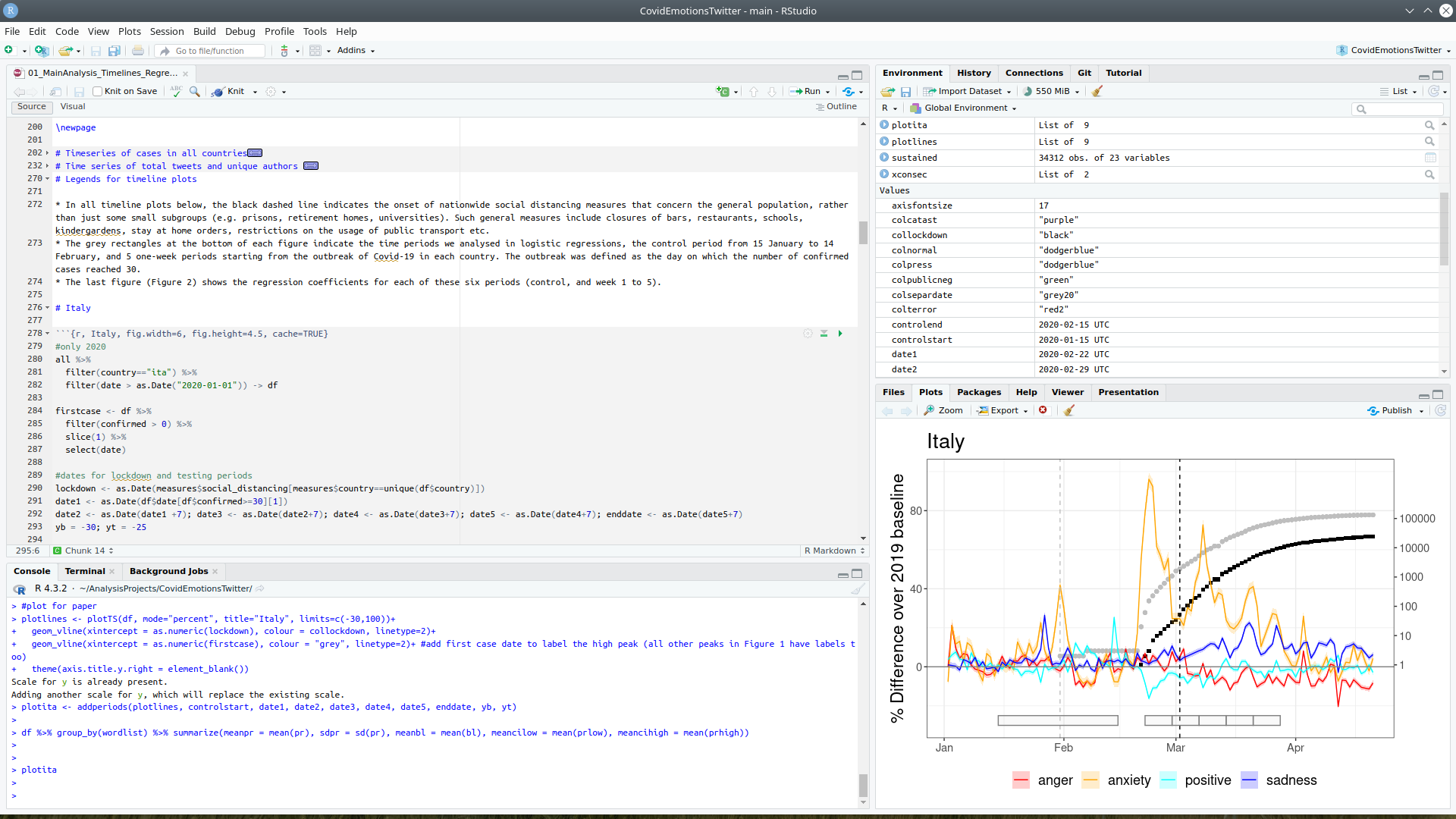
- Left top = Source pane: Writing your scripts (with code & text)
- Left bottom = Console: executing code directly
- Right pane = information about your code, outputs of your code, help…
3 Console commands
- Let’s start working in the Console.
1 + 1[1] 2- History of commands: up/down arrows
- Entries can have multiple lines
- Lines starting with # are a comment: notes that explain what your code is doing. Comments are crucial for reproducibility, and for making the life of your later self easier.
# let's break it over multiple lines
1 + 2 + 3 + 4 + 5 + 6 +
    7 + 8 + 9 +
    10
[1] 55>at the start of a line: R is waiting for a new line+: R waits until you finish a command from the previous line
(3 + 2) * #enter only this part first: # R waits until next line for evaluation
     5
[1] 254 Coding Terms
4.1 Objects & Assignment
- Objects = variables: store results, numbers, letters for later use
- Assigning something to an object: storing it
## use the assignment operator '<-'
## R stores the number in the object
x <- 5
Use the object x in your next step:
x * 2[1] 10Valid object names
Object starts with a letter or a full stop and a letter
Object distinguishes uppercase and lowercase letters
Valid objects: songdata, SongData, song_data, song.data, .song.data, never_gonna_give_you_up_never_gonna_let_you_down
Invalid objects: _song_data, 1song, .1song, song data, song-data
Exercise
Which of the following are valid object names?
slender_man
copy pasta
DOGE
(╯°□°)╯︵ ┻━┻
ErMahGerd
34Rule
panik-kalm-panik
👀
I_am_once_again_asking_you_for_your_support
.this.is.fine.
_is_this_a_pigeon_
4.2 Strings
- Text inside quotes is called a string, here one assigned to an object called “string1”:
string1 <-"I am a string"You can break up text over multiple lines; R waits for a close quote. If you want to include quotes inside this string, escape it with a backslash.
long_string <- "In the grand kingdom of Punctuation, the
exclamation mark and the question mark decided

to throw a party. They invited all the punctuation marks:
the commas, the semicolons, the colons, and even the ellipsis.
The period, known for being a bit of a downer, said,

\"I'll stop by.\""

cat(long_string) # cat() prints the string
In the grand kingdom of Punctuation, the
exclamation mark and the question mark decided
to throw a party. They invited all the punctuation marks:
the commas, the semicolons, the colons, and even the ellipsis.
The period, known for being a bit of a downer, said,
"I'll stop by."4.3 The environment
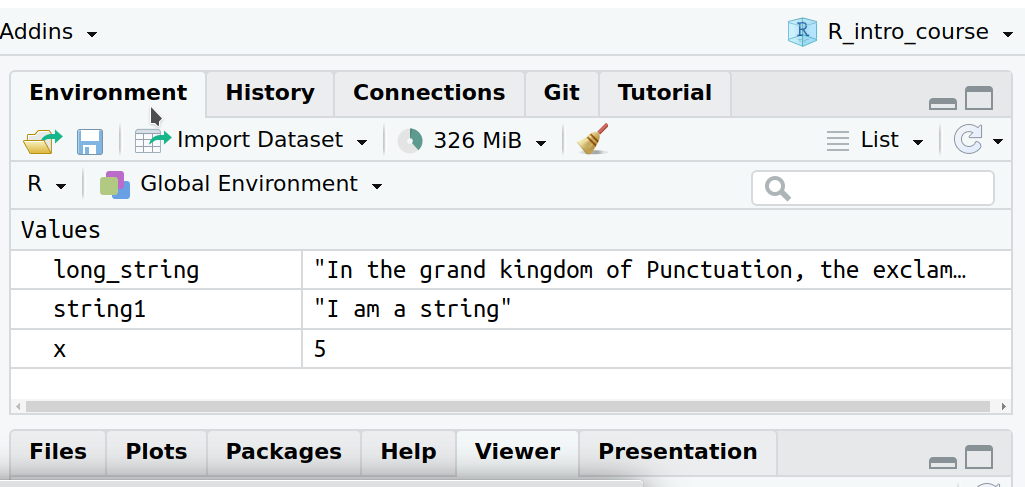
- When you assign something to an object, R creates an entry in the global environment.
- Saved until you close Rstudio
- Check the upper right pane
- Click the broom icon to clear all objects
- Useful functions:
ls() # print the objects in the global environment[1] "long_string" "string1" "x" rm("x") # remove the object named x from the global environment
rm(list = ls()) # clear out the global environment4.4 Whitespace
R mostly ignores them. Use them to organize your code.
# a and b are identical
a <- list(ctl = "Control Condition", exp1 = "Experimental Condition 1", exp2 = "Experimental Condition 2")

# but b is much easier to read
b <- list(ctl  = "Control Condition",
          exp1 = "Experimental Condition 1",
          exp2 = "Experimental Condition 2")
It is often useful to break up long functions onto several lines.
cat("The hyphen and the dash argued about who was faster to get there.",
    "The parentheses brought their side comments,",
    "while the quotation marks couldn't stop",
    "repeating what everyone else said.",
    sep = "  \n") #start a new line after each comma/element
The hyphen and the dash argued about who was faster to get there.
The parentheses brought their side comments,
while the quotation marks couldn't stop
repeating what everyone else said.4.5 Function syntax
- Function: code that can be reused
- Example:
sdto calculate the standard deviation - Functions are set up like this:
function_name(argument1, argument2 = "value")- Arguments can be named: (argument1 = 10)
- You can skip the names if you put the arguments in the order defined in the function.
- Example with an invented function that assigns people (values) to seats (arguments): Maria gets seat 1, Barbara seat 2 and Claudia seat 3.
With names the order does not matter:
Assign_a_seat(seat3 = Claudia, seat1 = Maria, seat2 = Barbara)You can leave out the names if you put them in the right order.
Assign_a_seat(Maria, Barbara, Claudia)- Check the order in the help pane by typing
?sdin the console. - You can skip arguments that have a default value specified (
FALSEforsd), if the default is what you want.
Exercise
The function rnorm() generates random numbers from the standard normal distribution.
- Check its syntax in the help page.
- what is n?
- what is the default mean and sd of the distribution?
- Try executing the function without any arguments. Why do you get an error?
If you want 10 random numbers from a normal distribution with a mean of 0 and standard deviation of 1, you can just use the defaults.
rnorm(10) [1] 1.19666964 1.25831812 -0.66908030 0.57525420 1.43774523 0.22813313
[7] -0.36822080 -0.44683899 1.05864313 0.09810682If you want 10 numbers from a normal distribution with a mean of 100 (we do not need argument names here):
rnorm(10, 100) [1] 101.05053 101.23766 100.28200 98.60694 100.07867 99.06495 98.67434
[8] 100.12002 99.99288 100.62092This gives you the same result, it’s just less efficient for writing:
rnorm(n = 10, mean = 100) [1] 100.63484 99.53612 102.16187 100.46130 100.23255 98.50248 101.81798
[8] 98.11211 97.64121 101.28468We need names if we change the third argument, without writing out the second:
rnorm(10, sd = 100) [1] 36.739825 -2.308466 3.645196 -38.362880 -79.673404 71.908489
[7] -91.656546 51.607963 -40.305533 -3.995286Functions with a list of options after an argument: the default value is the first option. The function power.t.test() helps you make calculations around statistical power of t-tests. Its help entry looks like this:
power.t.test(n = NULL, delta = NULL, sd = 1, sig.level = 0.05,
             power = NULL,
             type = c("two.sample", "one.sample", "paired"),
             alternative = c("two.sided", "one.sided"),
             strict = FALSE, tol = .Machine$double.eps^0.25)
What about the NULLs? More info from the help entry:
- Two of the arguments with
NULLneed to be specified (no defaults). The third is calculated.- n: number of observations per group
- delta: true difference in means
- power: power of test
Exercise
- What is the default value for sd?
- What is the default value for type?
- Which is equivalent to power.t.test(100, 0.5)?
- power.t.test()
- power.t.test(n = 100)
- power.t.test(delta = 0.5, n = 100)
- power.t.test(100, 0.5, sig.level = 1, sd = 0.05)
5 Add-on packages
- Package: Collection of code somebody has written and shared
- Examples: data visualisation, machine learning, web scraping, neuroimaging…
- Main repository: CRAN, the Comprehensive R Archive Network
5.1 Installing and loading
- Installing: Only once (like an app). Always from the console (not from a script).
# type this in the console pane
install.packages("beepr")- Loading a package (like opening an app)
library(beepr)Now you can run the function beep() from the package. Turn on your sound before you do.
beepr::beep() # default sound
beepr::beep(sound = "mario") # change the sound argument
For clean code: Use package::function() to indicate which package a function comes from.
readr::read_csv()refers to- the function
read_csv() - in the package
"readr"
- the function
5.2 Tidyverse
"tidyverse"is a meta-package that loads several packages we’ll be using in almost every script:
ggplot2for data visualisationreadrfor data importtibblefor tablestidyrfor data tidyingdplyrfor data manipulationpurrrfor repeating thingsstringrfor stringsforcatsfor factors (categorical variables)
Exercise
- Install Tidyverse via your console.
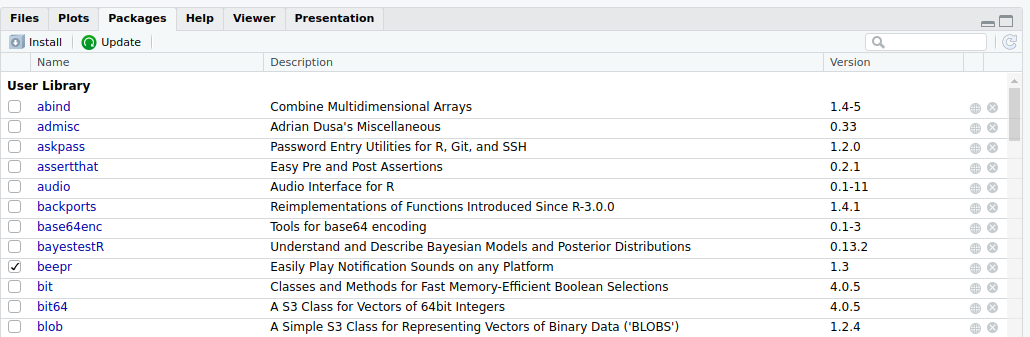
- Check installed and loaded packages in the lower right pane.
6 Getting help
- It’s normal to look things up all the time!
- Very useful: Cheatsheets
- Access via
Help->Cheatsheets - For today: RStudio IDE Cheatsheet
- Access via
6.1 Function help
# these methods are all equivalent ways of getting help
help("rnorm")
?rnorm
help("rnorm", package="stats")
Package is not loaded, or you don’t know which package the function belongs to: Use ??function_name.
6.2 Googling
- Using jargon like “concatenate vectors in R” helps
- You’ll get more useful results with practice
- Use R, Rstats, or the name of the package.
- www.rseek.org only shows R-specific results
6.3 LLM models (ChatGPT, Claude, Gemini)
- LLM models are really good programmers.
- They were trained on lot’s of code from the internet.
- Some can even execute code (ChatGPT, Claude).
- It helps to know the basics of coding to understand how to use their output.
- But then, these models make you as good as an average data scientist.
- Checkout https://hannahmetzler.eu/ai_skills for tips about using LLMs.
6.4 Vignettes
- They explain how to use a package.
- Many packages have vignettes.
library(tidyverse)
# open a list of available vignettes for the plotting package ggplot2:
vignette(package = "ggplot2")

# open a specific vignette in the Help pane
vignette("ggplot2", package = "ggplot2")
6.5 Asking for help of human experts
- If all else fails: Forums like Statsexchange
- Copy & paste your code and errors to be precise
7 Quick introduction to Git & Github
7.1 What for?
- Back up for your code - never loose your work.
- Version control
- Share code (for students, publications…)
- Collaborate on coding projects
- Use code from multiple computers
- For all files – not just code!
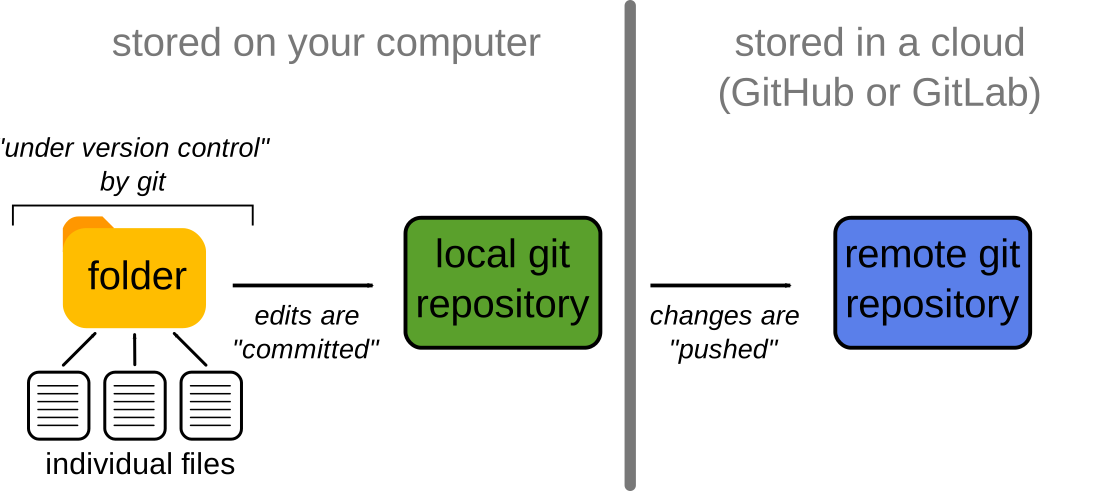
7.2 How does it work?

7.3 Preparations for next time
- Set up Git & GitHub on your laptop.
- Detailed instructions here
8 Optional exercises
8.1 Type commands into the console
In the console, type the following:
1 + 2
a <- 1
b <- 2
a + b
Look at the Environment tab in the upper right pane. Set the variable how_many_objects below to the number of objects listed in the environment.
how_many_objects <- NULL8.2 Understand function syntax
Use the rnorm() function to generate 10 random values from a normal distribution with a mean of 800 and a standard deviation of 20, and store the resulting vector in the object random_vals.
random_vals <- NULLUse the help function to figure out what argument you need to set to ignore NA values when calculating the mean of the_values. Change the function below to store the mean of the_values in the variable the_mean.
the_values <- c(1,1,1,2,3,4,6,8,9,9, NA) # do not alter this line
the_mean   <- NULL
Figure out what the function seq() does. Use the function to set tens to the vector c(0, 10, 20, 30, 40, 50 ,60, 70 ,80 ,90, 100). Set bins6 to the cutoffs if you wanted to divide the numbers 0 to 100 into 6 bins. For example, dividing 0 to 100 into 4 bins results in the cutoffs c(0, 25, 50, 75, 100),
tens  <- NULL
bins6 <- NULL
Figure out how to use the paste() function to paste together strings with forward slashes (“/”) instead of spaces. Use paste() to set my_dir to “my/project/directory”.
my_dir <- NULL8.3 Install a package
Install the CRAN package called “cowsay”. Run the code to do this and include it in the code chunk below, but comment it out. It is bad practice to write a script that installs a package without the user having the option to cancel. Also, some packages take a long time to load, so you won’t want to install them every time you run a script.
# comment out the installation codeThe code below has errors. Fix the code.
cowsay::say)cowsay::say(by = pumpkin)cowsay::say(by_colour = "blue")8.4 Solutions
Check your solutions here.
9 References
This lesson is based on Chapter 1 Materials and Exercises of this free online text book: Lisa DeBruine & Dale Barr. (2022). Data Skills for Reproducible Research: (3.0) Zenodo. doi:10.5281/zenodo.6527194.